
I think its definitely them learning from PS's mistake and making sure everything was majorly stocked up for the launchAggie71013 said:
How much of this is Nintendo having adequate supply? Still a major milestone to celebrate, but is it more supply related than lack of PlayStation demand / excitement?
**** Nintendo Switch 2 Thread ****
128,395 Views |
773 Replies |
Last: 17 days ago by Max Power
If there's ample supply then how come it doesn't show available on Amazon yet?
Received an extra switch 2 that I'm looking to sell. Anyone know the best place to sell these days?
Haven't needed to sell a new item. I've always done it used at GameStop
Haven't needed to sell a new item. I've always done it used at GameStop
easttexasaggie04 said:
If there's ample supply then how come it doesn't show available on Amazon yet?
Amazon not having any Nintendo Switch 2 first party hardware and games has nothing to do with limited supply. There is wide spread speculation that there is some ongoing disagreement between Amazon and Nintendo that has resulted Amazon not being allowed to sell any Nintendo Switch 2 first party hardware and games or it seems even allowing 3rd party re-sellers to have listings on Amazon Marketplace even if they are not using Amazon fulfillment.
Facebook marketplace.
Put it up for market value and you'll probably get an offer within the hour, if that.
Put it up for market value and you'll probably get an offer within the hour, if that.
I'd imagine someone here would also happily take it off your hands.
fig96 said:
I'd imagine someone here would also happily take it off your hands.
This. Post it here and on Classifieds.
Got my pro 2 controller yesterday. Can confirm, it is very nice. It's pricey but you can definitely feel the quality.
The new back buttons are very nicely placed. For BOTW, I made the right one my jump button and it's so much better to run and jump now.
The new back buttons are very nicely placed. For BOTW, I made the right one my jump button and it's so much better to run and jump now.
I didn't realize they added the paddle buttons. I was actually using a knock off controller that had those for the original switch because I was so used to my xbox elite/dualsense edge paddles.Brian Earl Spilner said:
Got my pro 2 controller yesterday. Can confirm, it is very nice. It's pricey but you can definitely feel the quality.
The new back buttons are very nicely placed. For BOTW, I made the right one my jump button and it's so much better to run and jump now.

For anyone that played Final Fantasy Tactics - a remastered version is coming out in September and will be available for Switch and Switch 2. This game is beyond excellent and I highly recommend it. Turn based tactical RPG. I've already preordered my copy.
https://www.square-enix-games.com/en_US/news/final-fantasy-tactics-the-ivalice-chronicles
https://www.square-enix-games.com/en_US/news/final-fantasy-tactics-the-ivalice-chronicles
Can someone help me decide what games to get on my Switch 2 from the Switch 1 era? I've played through Mario Kart and am feeling a bit lacking for other games at the moment. I want something that has a really good Switch 2 version in terms of resolution and framerate.
I had a Switch 1 but skipped out on a few titles:
Splatoon 2/3
Smash Bros
Metroid Prime Remaster
Animal Crossing
Super Mario Wonder
Super Mario 3D World
Zelda: Link's Awakening (played the original)
Zelda: Echoes of Wisdom
Xenoblade series
Could be plenty of others I'm missing
*Important Note: I am more of a single player guy, and prefer adventure type games and platformers. I have Mario Odyssey and Zelda: BOTW/TOTK. Enjoy Zelda a lot, but prefer good dungeons.
Out of the list, I am kinda hesitant on all of them for various reasons, some of them seem like much smaller games and not the ambitious games I own that I mentioned.
Also - where is the cheapest place to buy those Nintendo Vouchers? Digitally through eShop it is $99 for 2 games, is it cheaper anywhere else?
I had a Switch 1 but skipped out on a few titles:
Splatoon 2/3
Smash Bros
Metroid Prime Remaster
Animal Crossing
Super Mario Wonder
Super Mario 3D World
Zelda: Link's Awakening (played the original)
Zelda: Echoes of Wisdom
Xenoblade series
Could be plenty of others I'm missing
*Important Note: I am more of a single player guy, and prefer adventure type games and platformers. I have Mario Odyssey and Zelda: BOTW/TOTK. Enjoy Zelda a lot, but prefer good dungeons.
Out of the list, I am kinda hesitant on all of them for various reasons, some of them seem like much smaller games and not the ambitious games I own that I mentioned.
Also - where is the cheapest place to buy those Nintendo Vouchers? Digitally through eShop it is $99 for 2 games, is it cheaper anywhere else?
Out of that list I've played:
Splatoon 3
Super Mario Wonder
Super Mario 3D World
Smash
I put the most hours into 3D world and would recommend it. . Wonder is better reviewed, but I wasn't enamored by it.
You can often get international version of these games from Woot. Games are region free.
Splatoon 3
Super Mario Wonder
Super Mario 3D World
Smash
I put the most hours into 3D world and would recommend it. . Wonder is better reviewed, but I wasn't enamored by it.
You can often get international version of these games from Woot. Games are region free.
Have any of y'all had time with the built in Mic for voice chat and can you comment on the quality?
I've tried it out a couple times with a friend. We were both sitting on our couches a few feet from our consoles and we could hear each other pretty well, although with a bit of reverb.
It's a little confusing that apparently it won't take the mic on your headphones as input. But for having a mic on the Switch and sitting far from it, it works pretty well.
It's a little confusing that apparently it won't take the mic on your headphones as input. But for having a mic on the Switch and sitting far from it, it works pretty well.
Started Link's Awakening yesterday. The game looks beautiful.
It may as well be a Switch 2 Edition.
It may as well be a Switch 2 Edition.
Metroid Prime Remastered is an easy buy. Not only does it look and run beautifully, but it's not even full price. (Is it still 40?)
It's probably the best remaster Nintendo has ever released.
It's probably the best remaster Nintendo has ever released.

Xenoblade Chronicles X: Definitive Edition released just a few months ago. It is a blast.
CNN is an enemy of the state and should be treated as such.
BenFiasco14 said:
Xenoblade Chronicles X: Definitive Edition released just a few months ago. It is a blast.
Just disappointed there's no patch, gonna hold off and see
Brian Earl Spilner said:
Metroid Prime Remastered is an easy buy. Not only does it look and run beautifully, but it's not even full price. (Is it still 40?)
It's probably the best remaster Nintendo has ever released.
Yeah I want to try this out but waiting to see on MP2/3 remasters leading up to MP4
Not familiar with this.
We have a Switch 1, with a Jurassic Park and a Star Wars (game).
We have a Switch 1, with a Jurassic Park and a Star Wars (game).
A little PSA for those who are playing their Switch 2 on a 4k OLED TV. Because the HDR setup is apparently not done very well in the Switch menu and there's a setting I didn't even know about that could be throwing it way off.
First step is to go into your TV Settings > Brightness > Dynamic Tone Mapping > HGIG.
Unless you've done it before, it is very likely just set to "On", but you have to change it to "HGIG". This essentially stops the TV from trying to override the HDR setting that your console will be sending to your TV. (And the setting will only be visible with your Switch turned on.)
Then, on your Switch, go to System Settings > Display > Adjust HDR. You'll have to click up or down until you see the gray sun icon on the left but not on the right.
And then in the next page, you'll see a sample image of Super Mario Wonder. Here, you have you press Y to adjust brightness (which is easy to miss), and I recommend turning that down several notches. The overall image will look a little dimmer, but the colors will look a bit deeper and pop a little more. (Otherwise if the overall brightness is too high, colors can wash out.) I set it just around 1/3 of the way from the left.
Finally, make sure to only enable HDR for HDR compatible games, NOT for all games. (HDR will basically ruin non-HDR games.)
First step is to go into your TV Settings > Brightness > Dynamic Tone Mapping > HGIG.
Unless you've done it before, it is very likely just set to "On", but you have to change it to "HGIG". This essentially stops the TV from trying to override the HDR setting that your console will be sending to your TV. (And the setting will only be visible with your Switch turned on.)
Then, on your Switch, go to System Settings > Display > Adjust HDR. You'll have to click up or down until you see the gray sun icon on the left but not on the right.
And then in the next page, you'll see a sample image of Super Mario Wonder. Here, you have you press Y to adjust brightness (which is easy to miss), and I recommend turning that down several notches. The overall image will look a little dimmer, but the colors will look a bit deeper and pop a little more. (Otherwise if the overall brightness is too high, colors can wash out.) I set it just around 1/3 of the way from the left.
Finally, make sure to only enable HDR for HDR compatible games, NOT for all games. (HDR will basically ruin non-HDR games.)
I guess I underpriced my original Switch. I posted it on Facebook marketplace this morning for $125 and, within minutes, I was inundated.
Oh well. Within 90 minutes of posting it I had the cash in my pocket. Easy peasy.
Oh well. Within 90 minutes of posting it I had the cash in my pocket. Easy peasy.
Well I'm glad I calibrated my HDR correctly, because I made it to the Vah Rudania divine beast in BOTW last night, where it's dark for half the dungeon, and the HDR was looking damn good on my OLED tv. The light of the torches and the chests looked amazing against the pitch black room.
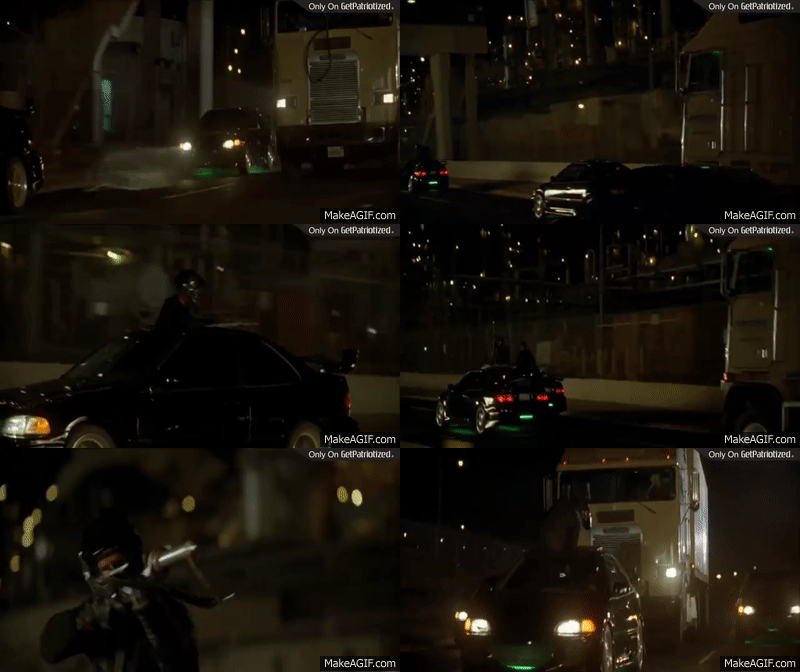
Amazing
BES finally getting to make the post he was destined to make.
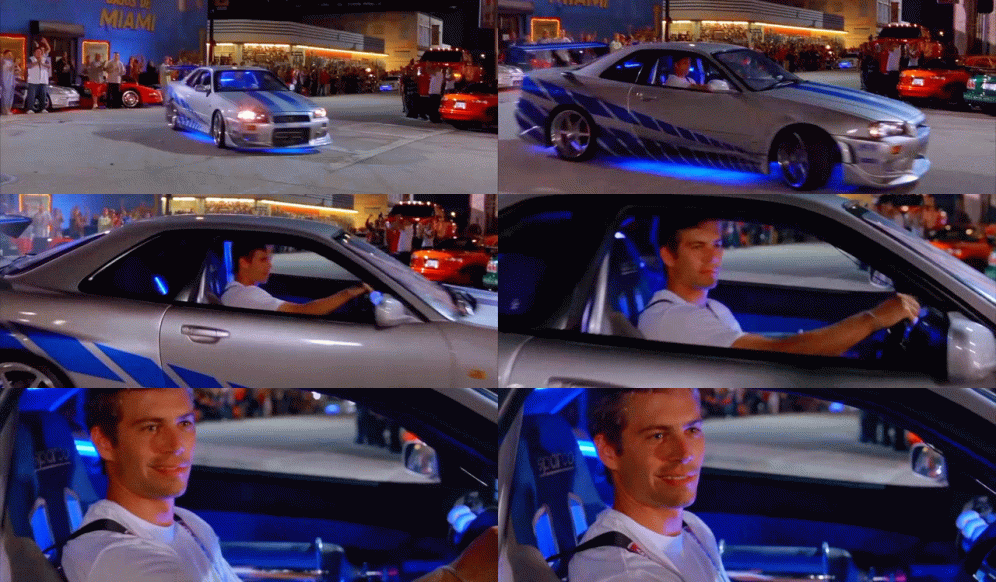
Sucks to suck. (as the kids say)
I get that Nintendo really wants to eliminate "cheaters/pirates", but this might be going overboard depending on how it all shakes out.
We are at the point where cars & appliances are also connected online... is my washing machine gonna stop working because I used a "non authorized" detergent and I violated the end user agreement!?!
Just feels like there is a better way to go about this other than partially bricking consoles. From what I'm reading, it sounds like the console wouldn't let people play their copied games (whether they own them legally or not). OK great... isn't that enough? I'm not an expert on the topic, but feels like Nintendo is once again out of line.
We are at the point where cars & appliances are also connected online... is my washing machine gonna stop working because I used a "non authorized" detergent and I violated the end user agreement!?!
Just feels like there is a better way to go about this other than partially bricking consoles. From what I'm reading, it sounds like the console wouldn't let people play their copied games (whether they own them legally or not). OK great... isn't that enough? I'm not an expert on the topic, but feels like Nintendo is once again out of line.
And as a sidenote, I'm not so much concerned about the people who used legal or illegally modded software... 95% of those people knew they were playing with fire. But if Nintendo is actually putting a ban on the actual console, it's going to be extremely unfair to the poor moms/dads/kids who buy these consoles second hand.
I bet some of these guys will even pack up their bricked consoles and sell it online as "new".
I bet some of these guys will even pack up their bricked consoles and sell it online as "new".
I mean just don't play pirated/copied games though? Seems pretty reasonable.
Not sure why anyone would need to put games they legally own on one of those cartridges.
Not sure why anyone would need to put games they legally own on one of those cartridges.
Yes your washing machine will do that soon I'm sure
CNN is an enemy of the state and should be treated as such.
Most of them are likely just lying about their piracy, but I can see one legitimate use for them. You buy games on cartridge and want the convenience of not carrying around a bunch of postage stamp-sized media.
Since my kids have reached gaming age, I've started buying digital downloads, but we've probably lost 2-3 of our game cartridges from before I made that change. It would have been great to put them on one of these and put the actual games somewhere the kids can't lose them.
Since my kids have reached gaming age, I've started buying digital downloads, but we've probably lost 2-3 of our game cartridges from before I made that change. It would have been great to put them on one of these and put the actual games somewhere the kids can't lose them.
BenFiasco14 said:
Yes your washing machine will do that soon I'm sure
Edit: my last response was way too long for y'all's fun switch thread so I'm taking it away.
I'll just say that it's a slippery slope if Big N starts permanently bricking or nerfing consoles for something as silly as using a "copied" game. I'd be all for temp bans, but not permanent changes to someone's system.
Featured Stories
See All
Testing your trivia knowledge from A&M's SEC era
by Olin Buchanan
22:30
23h ago
4.0k
10:48
18h ago
2.4k
Outfielder Alec Blair 'blessed' to finally be an Aggie
by Richard Zane
aggiesed8r
Joshua Dobson says he's committed for now but a long way to go.
in Billy Liucci's TexAgs Premium
30
SVR44
Joshua Dobson says he's committed for now but a long way to go.
in Billy Liucci's TexAgs Premium
26
Enrico Pallazzo
Joshua Dobson says he's committed for now but a long way to go.
in Billy Liucci's TexAgs Premium
21
Shakestar
Joshua Dobson says he's committed for now but a long way to go.
in Billy Liucci's TexAgs Premium
16
Pinche Guero
Joshua Dobson says he's committed for now but a long way to go.
in Billy Liucci's TexAgs Premium
16
AggieBucksJB
Joshua Dobson says he's committed for now but a long way to go.
in Billy Liucci's TexAgs Premium
15